# IceNvim
**Repository Path**: yjinit/IceNvim
## Basic Information
- **Project Name**: IceNvim
- **Description**: No description available
- **Primary Language**: Unknown
- **License**: MIT
- **Default Branch**: master
- **Homepage**: None
- **GVP Project**: No
## Statistics
- **Stars**: 0
- **Forks**: 0
- **Created**: 2025-06-18
- **Last Updated**: 2025-06-18
## Categories & Tags
**Categories**: Uncategorized
**Tags**: None
## README
IceNvim
*如果可以的话,可以点一个 star✨✨✨。谢谢您的支持~*
[](https://github.com/neovim/neovim)
[](https://github.com/neovim/neovim)
[](https://github.com/Shaobin-Jiang/IceNvim/blob/master/LICENSE)
通过其他语言查看:[English](README.md) / [中文](README_zh.md)
IceNvim 是一个美观、功能强大、支持高度自定义的 neovim 配置,且流畅迅速。
如果想要更详细地了解 IceNvim 的一些特性和使用方法,可以参考 [wiki](https://github.com/Shaobin-Jiang/IceNvim/wiki/Introduction)(目前仅有英文版本,但之后计划重写了)。
## 截图


## 特性
- 适合开发工作:
- 支持 C# / Flutter / Lua / Python / Rust / Web 开发以及 markdown 编辑
- 结合了 Git
- 更好的编辑体验
- 使用了 `hop.nvim`、`undotree`、`nvim-surround` 等插件
- 针对中文用户,添加了切换模式时自动切换输入法的功能(需要[额外配置](#mark-im-select))
- 美观:
- 预装了多种主题
- 主题切换工具
- 用户友好:
- 使用 which-key.nvim 显示快捷键
- 预装了 health check,可以帮助新用户检查是否缺少某些依赖
- 功能齐全
- 提供了查看图标的工具,用来检查字体是否和图标兼容
- 一键打开配置文件的工具
- 现代:使用 `Lazy` 和 `Mason`
- 自定义:
- 轻松使用自己的 [配置文件](#mark-custom-configuration) 覆盖默认设置
## 依赖
- IceNvim 需要 neovim **0.9.0+**,不过 **0.10.0+** 更好
- 此外,你需要安装以下内容:
- 一款 [nerd font](https://www.nerdfonts.com/font-downloads):可选,但是如果不安装看起来会比较奇怪
- git:几乎所有的插件和 lsp 安装都需要它
- Mason 的依赖项:
- curl
- gzip / 7zip
- wget
- telescope 的依赖项
- fd
- ripgrep (也是 grug-far.nvim 的依赖项)
- nvim treesitter 的依赖项
- gcc
- cmake
- node
- npm
- markdown-preview.nvim 的依赖项
- yarn
- rustaceanvim 的依赖项
- rust-analyzer (不是 Mason 提供的那个!!!)
- python3 和 pip3
- Linux / WSL 上的额外依赖
- unzip
- python 虚拟环境
- xclip(用来访问系统剪贴板)
- zip
注意,不同包管理器里这些包的名称可能有所不同!
在 MacOS 上安装依赖:
```bash
brew install wget fd ripgrep node yarn cmake
```
在 Arch 上安装依赖:
```bash
sudo pacman -S --needed curl gzip wget fd ripgrep gcc nodejs npm python python-pip unzip zip xclip python-virtualenv
```
在 Windows 上安装依赖(使用 scoop):
```bash
scoop install curl gzip wget fd ripgrep mingw nodejs-lts python
```
如果需要确认依赖项是否被正确安装,可以在按照下一节内容安装完毕后,通过 `nvim --noplugin` 启动 neovim 并运行 `IceHealth`。
## 安装
Windows:
```bash
git clone https://github.com/Shaobin-Jiang/IceNvim "$env:LOCALAPPDATA\nvim"
```
Linux / MacOS:
```bash
git clone https://github.com/Shaobin-Jiang/IceNvim ~/.config/nvim
```
下载 `im-select.exe` (推荐 windows / wsl 用户安装)
如果想要在使用中文输入的时候进行自动化的输入法切换则需要 im-select.exe。
从 [https://github.com/daipeihust/im-select/raw/master/win/out/x86/im-select.exe](https://github.com/daipeihust/im-select/raw/master/win/out/x86/im-select.exe) 下载并放到配置文件夹下的 `bin` 文件夹内部。
此外,如果你使用的是 wsl,还需要运行这行命令:
```bash
chmod +x ~/.config/nvim/bin/im-select.exe
```
### 安装 `macism` (推荐 MacOS 用户安装)
你可以通过下面的命令安装 macism:
```bash
brew tap laishulu/homebrew
brew install macism
```
请注意:
- 第一次使用这个功能的时候,MacOS 会弹出窗口请求相应权限
- 你需要启用“选择上一个输入法”快捷键,启用选项在“系统设置 -> 键盘 -> 键盘快捷键 -> 输入法” 中可以找到
### 下载 `uclip.exe` (推荐 windows / wsl 用户安装)
尽管外部程序可以使用 IceNvim 内部复制的文字,你可能会发现在 Windows 和 WSL 上复制的 unicode 无法被正确粘贴,这是因为这一功能是由 Windows 的 `CLIP` 命令处理的,这个命令处理 utf-8 字符很差。
如果要解决这个问题,你需要下载 [uclip.exe](https://github.com/suzusime/uclip/releases/download/v0.1.0/uclip.exe) 并放到配置文件夹下的 `bin` 文件夹内部。
此外,如果你使用的是 wsl,还需要运行这行命令:
```bash
chmod +x ~/.config/nvim/bin/uclip.exe
```
自定义配置
我们允许你通过在 `lua/` 下创建一个 `custom` 文件夹来覆盖默认的配置。
IceNvim 会尝试检测并加载 `custom/init.lua`。`custom/` 不会被 git 追踪,所以你可以放心地编写自己的配置,不用担心弄乱原本的 git 仓库以及错过后续更新。
IceNvim 多数的配置内容可以在全局变量 `Ice` 下找到。IceNvim 遵循以下流程进行配置:
- IceNvim 进行一些默认项的设置,并把其中一些内容存储到 `Ice` 中,比如插件配置和快捷键(此时尚未生效)
- IceNvim 加载 `custom/init.lua`
- IceNvim 使用 `Ice` 里的内容加载插件、创建快捷键
因此,IceNvim 定义的所有内容几乎都可以由你进行重新配置。
一份示例的 `custom/init.lua`:
```lua
Ice.plugins["nvim-transparent"].enabled = false
Ice.keymap.general.open_terminal = { "n","terminal", ":split term://bash" }
local autogroup = vim.api.nvim_create_augroup("OverrideFtplugin",{ clear = true })
vim.api.nvim_create_autocmd("BufEnter",{
group = autogroup,
callback = function()
if vim.bo.filetype == "lua" then
vim.cmd "setlocal colorcolumn=120"
end
end,
})
```
## 可能的问题
### Alt 相关的快捷键在 MacOS 的 Kitty 上不生效
在 `kitty.conf` 中添加 `macos_option_as_alt yes`。
### 安装 Omnisharp / Csharpier
安装 omnisharp 的时候需要确保你已经安装了 dotnet sdk。
安装 csharpier 的时候如果遇到了 nuget 相关的错误,可能需要配置 nuget 源(见 [https://learn.microsoft.com/zh-cn/nuget/reference/errors-and-warnings/nu1100#solution-2](https://learn.microsoft.com/zh-cn/nuget/reference/errors-and-warnings/nu1100#solution-2)):
```shell
dotnet nuget add source https://api.nuget.org/v3/index.json -n nuget.org
```
### Rust 支持有问题
你可能需要检查一下你是怎么安装 rust 的。我在仅安装了 rust (例如,通过 `scoop install rust` 或者 `sudo zypper in rust`)的时候也没法正常使用 rust-analyzer,但是如果通过官方推荐的方式——即安装 rustup——就可以了。
此外,你可能会发现第一次打开 rust 项目的时候补全功能不能正常工作。这是因为索引代码需要时间,索引结束后才能开始补全。
### 安装 typst-preview.nvim 失败
安装 [typst-preview.nvim](https://github.com/chomosuke/typst-preview.nvim) 的时候,你可能会遇到这样的报错:`Downloading typst-preview binary failed, exit code: 35`。这可能是因为你使用了代理,你可以把代理软件关掉然后运行下面的命令:
```vim
lua require("typst-preview").update()
```
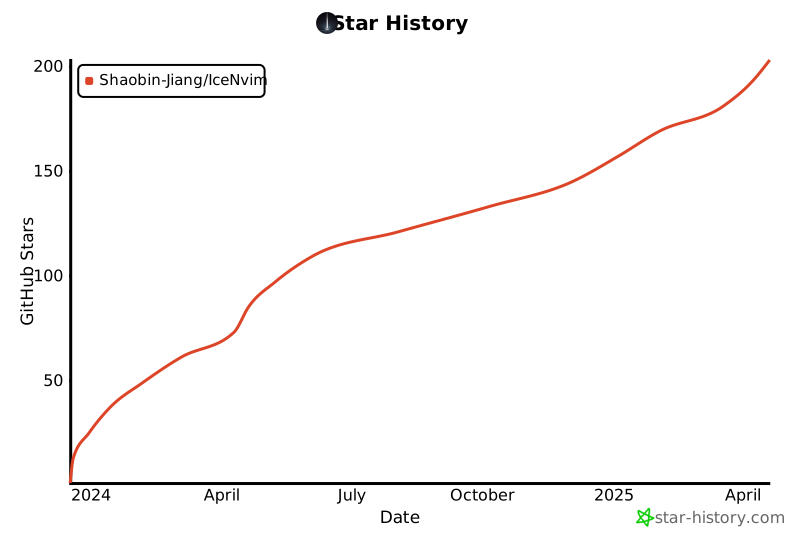
## Star 走势